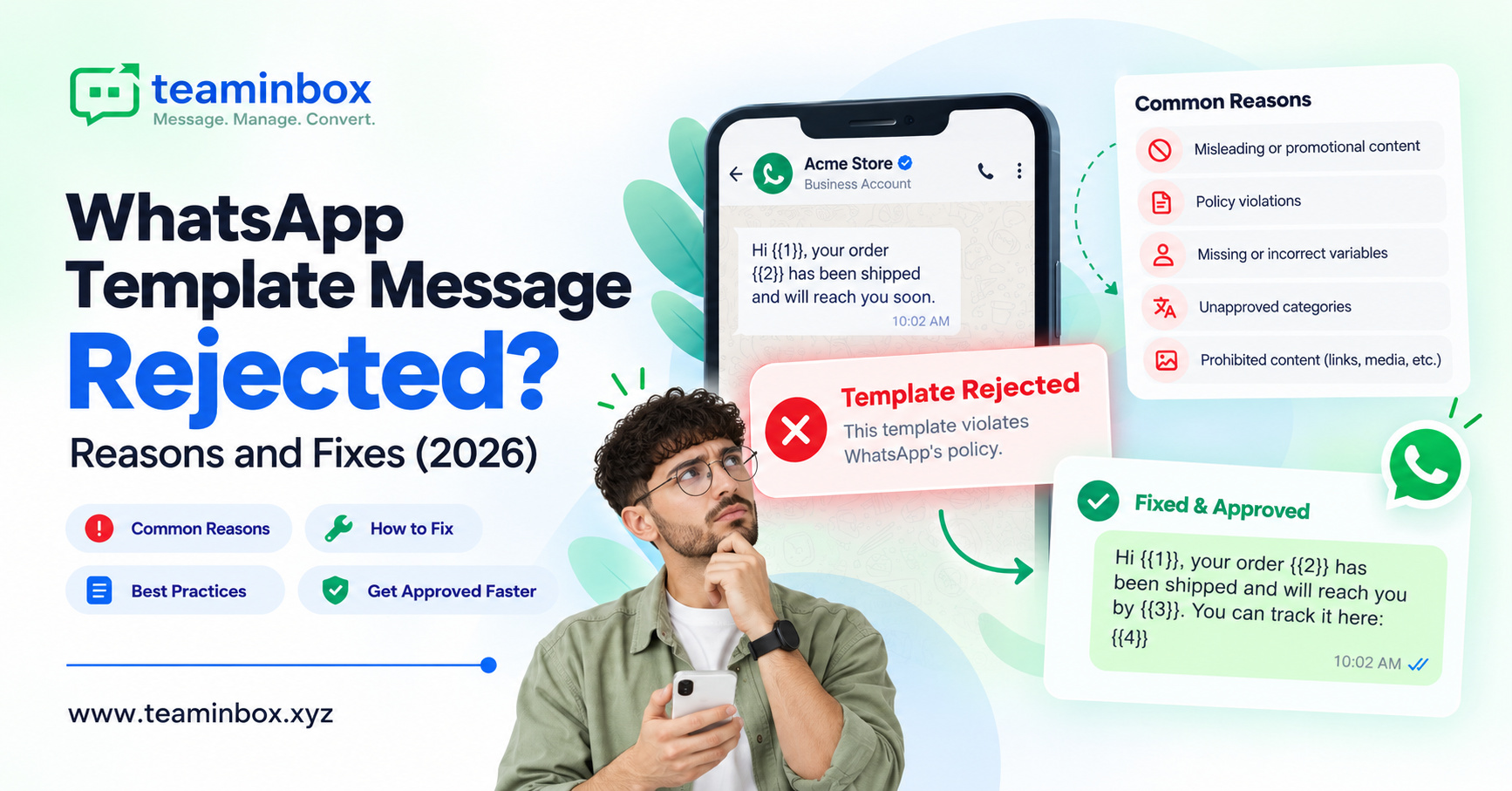

Your WhatsApp template got rejected. Now what?
Picture a coaching institute in Kanpur. Admissions open on Monday, the Meta ads are live, and 3,000 parents are waiting for a fee reminder on WhatsApp. On Sunday night, the team submits the template. On Monday morning, the email arrives: template rejected.
No reminder goes out. The counsellors start calling parents one by one. What should have taken two minutes ended up eating two full days.
We hear some version of this story almost every week. If Meta has rejected your WhatsApp template too, don’t panic. Almost every business on the official API goes through it in the first month. And honestly, the same handful of mistakes cause most rejections. Below, we’ve listed them, shared examples that actually got approved, and added the checklist our own team uses before submitting anything.
What is a WhatsApp message template, and why does Meta review it?
A message template is a pre-written message your business needs to start a conversation on the WhatsApp Business API, or to message a customer after the 24-hour customer service window has closed. Inside that window, your team can reply freely. Outside it, only an approved template can go out.
Before any template goes live, Meta checks it. A machine does the first pass, and sometimes a person looks at it too. Why so strict? Because people still open WhatsApp messages, unlike promotional SMS or that email folder nobody checks. Meta wants to keep it that way, so anything that smells like spam gets stopped.
Every template must sit in one of three categories:
| Category | What it is for | Example |
|---|---|---|
| Marketing | Offers, launches, festive sales, re-engagement, anything promotional | “Diwali sale: 20% off all sofas this week” |
| Utility | Updates tied to something the customer already did or asked for | Order confirmed, payment received, appointment reminder |
| Authentication | One-time passwords for login or verification | “Your OTP is 482913. Valid for 10 minutes.” |
Don’t treat the category as a formality. Get it wrong, and your template may be rejected. Even if it’s approved, you could end up paying more for every single message.
Why WhatsApp templates get rejected: 10 reasons we keep seeing
Meta does tell you the reason, by email and inside WhatsApp Manager, though the wording can be pretty vague. So we’ve put together the problems that come up again and again with our clients, and what fixed them. (AWS, Twilio)
| # | Rejection reason | What it looks like | How to fix it |
|---|---|---|---|
| 1 | Variable at the start or end | “{{1}}, your order is ready” or “…call us at {{1}}” | Wrap every variable in real words: “Hi {{1}}, your order is ready. Thank you!” |
| 2 | Broken variable format | {{1}} then {{3}}, a missing brace, or {{name}} where numbers are expected | Use sequential, correctly closed variables: {{1}}, {{2}}, {{3}} |
| 3 | Special characters in variables | #, $, or % inside a variable | Keep symbols in the fixed text, not in the variable |
| 4 | Too many variables, too few words | “{{1}} {{2}} {{3}} on {{4}}” | Add fixed context around variables so the message makes sense without them |
| 5 | Wrong category | A discount offer tucked into an “order update” | Split it: one utility template for the update, one marketing template for the offer |
| 6 | Vague purpose | “Hello, we have an update for you” | Say exactly what the message is about and why the customer is receiving it |
| 7 | Spammy or pushy wording | ALL CAPS, “ACT NOW”, “win a prize”, raffles | Use calm, specific language and a clear opt-out option for marketing |
| 8 | Policy violation | Loans with guaranteed approval, alcohol, betting, restricted products | Check WhatsApp’s Business and Commerce Policy before writing |
| 9 | Duplicate template | Same body and footer as an existing approved template | Edit the existing template or change the wording meaningfully |
| 10 | Formatting errors | Extra line breaks, tabs, long runs of spaces, broken links | Clean the text; use full https links from your own domain |
A quick tip on reasons 1 and 4: Meta has to judge your message without knowing what each variable will contain. If the fixed words alone do not explain the message, expect a rejection.
Marketing vs utility: the category trap that costs you money
Picking the wrong category is the rejection reason that hurts the most, because even when it does not block you, it raises your bill. Meta checks whether the category you chose matches what the message actually does. If it does not, Meta can reject the template or move it to a different category, and this check is not always predictable: genuine utility templates sometimes get marked as marketing. (Twilio)
Why it matters: in India, marketing messages cost noticeably more per message than utility messages. A template that gets moved from utility to marketing quietly raises the cost of every send. For a business sending lakhs of order updates a month, that adds up fast. (For the latest rates, see our Meta Service Charge 2026 guide.)
The rule of thumb is one purpose per template:
- Utility is about something the customer already started: a purchase, a booking, a payment, a support ticket.
- Marketing is anything that tries to get the customer to do something new, even one line like “Shop our new collection”.
- The moment you add a coupon, an upsell, or a “check out our latest offers” line to an order update, it becomes marketing.
Rejected vs approved: real-world template examples
Small wording changes decide most reviews. Here are three common Indian business messages, before and after.
1. Payment reminder (utility)
- Rejected: “{{1}} pay your dues NOW!!! {{2}}”
- Approved: “Hi {{1}}, this is a reminder that your fee of Rs {{2}} for {{3}} is due on {{4}}. You can pay at the link below. Reply HELP if you have any questions.”
2. Order update with an offer (split into two)
- Rejected as utility: “Your order {{1}} has shipped! Use code SAVE10 on your next order.”
- Approved utility: “Your order {{1}} has been shipped and will reach you by {{2}}. Track it here: {{3}}”
- Approved marketing (sent separately): “Thanks for shopping with us, {{1}}! Here’s 10% off your next order; just use code SAVE10 before {{2}}. Don’t want offers from us? Reply STOP.”
3. Following up with a new lead (marketing)
- Rejected: “Hello, there is an update for you. Click here {{1}}”
- Approved: “Hi {{1}}, you’d asked about our 2BHK flats in Gomti Nagar. We have site visits this Saturday and Sunday, and they’re free. Pick a slot that suits you from the buttons below.”
Our checklist for getting WhatsApp templates approved
We go through this list every time, even for small templates. Two minutes now is better than waiting on another rejection email.
- The template does just one job, and you’ve picked the category that matches that job
- The message makes sense even if you read it without the variables
- No variable sits at the very start or very end of the body
- Variables are numbered in order: {{1}}, {{2}}, {{3}}
- No #, $ or % inside variables
- Sample values are filled in for every variable
- No ALL CAPS, excessive emojis, or pressure words like “ACT NOW”
- Marketing templates include an opt-out line
- Links are full https links from your own domain
- No extra line breaks, tabs, or long gaps of spaces
- The template name is lowercase with underscores, like fee_reminder_v2
- It is not a copy of a template you already have approved
Still rejected? Open WhatsApp Manager and look at the reason given. Fix only that, then submit again. Changing everything at once makes it hard to tell what worked. And if you’re sure the rejection is a mistake, WhatsApp Manager also lets you ask Meta to take another look.
How TeamInbox makes templates easier to manage
TeamInbox runs on the official WhatsApp Business API, so your templates go through Meta’s real review, and your number stays safe. We don’t use any of the grey-market tools that get business numbers banned overnight.
Getting the template approved is step one. Here’s what our customers usually do with it next:
- Reply to customers and send templates from the same shared inbox. Your agents can see right away whether the 24-hour window is open or a template is needed.
- See which messages were delivered, which were read, and which failed. If a template starts failing, you’ll know the same day, not at month-end.
- Use approved templates in bulk broadcasts and broadcast sequences to send fee reminders, EMI alerts, or follow-ups without anyone typing them one by one.
- When a customer replies, that chat becomes a lead automatically, with notes, a pipeline stage and a reminder to follow up.
Still figuring out how the API works? Have a read of our Official Business WhatsApp API guide.
Writer’s note: if TeamInbox has a template builder or template-status screen, add a screenshot and one line about it here.
FAQs
Why was my WhatsApp template rejected?
Usually it’s one of a few things. A variable sitting at the very start or end, the wrong category, wording that doesn’t explain much, or something that sounds like spam. Sometimes the product itself isn’t allowed under WhatsApp’s Commerce Policy. Meta shows the exact reason in WhatsApp Manager and by email.
How long does WhatsApp template approval take?
In our experience, most come back within a few minutes. If a person at Meta has to look at yours, give it a day or two.
Can I edit a rejected WhatsApp template?
Yes. Fix it and send it again, or just make a fresh one under a new name if that’s easier.
Can Meta change my template category?
It can, and it does. If Meta feels your “utility” template is really promotional, it’ll move it to marketing. You’ll then pay the marketing rate on every send, so check the category after approval too.
What is the difference between a marketing and a utility template?
Think of it this way. Utility is “here’s an update on the thing you already did”, like an order, a booking, or a payment. Marketing is “here’s something new you might like”, like a sale or a new launch.
Do I need a template to reply to a customer?
Not if they’ve messaged you in the last 24 hours. During that time, your team can reply however they like. Templates come in only when you’re the one starting the chat, or when the 24 hours are up.
Get it right the first time
A rejection feels annoying, but it’s rarely serious. Nine times out of ten, it’s a variable in the wrong spot, the wrong category, or a line that sounds too salesy. Keep each template to one job, write it as you’d actually talk to a customer, and run through the checklist before you submit.
That Kanpur coaching institute? With a clean utility template, its fee reminders would have reached 3,000 parents in minutes, not two days.
Ready to run WhatsApp the official way? Start your free trial of TeamInbox or book a demo on WhatsApp.